 All Quick Solutions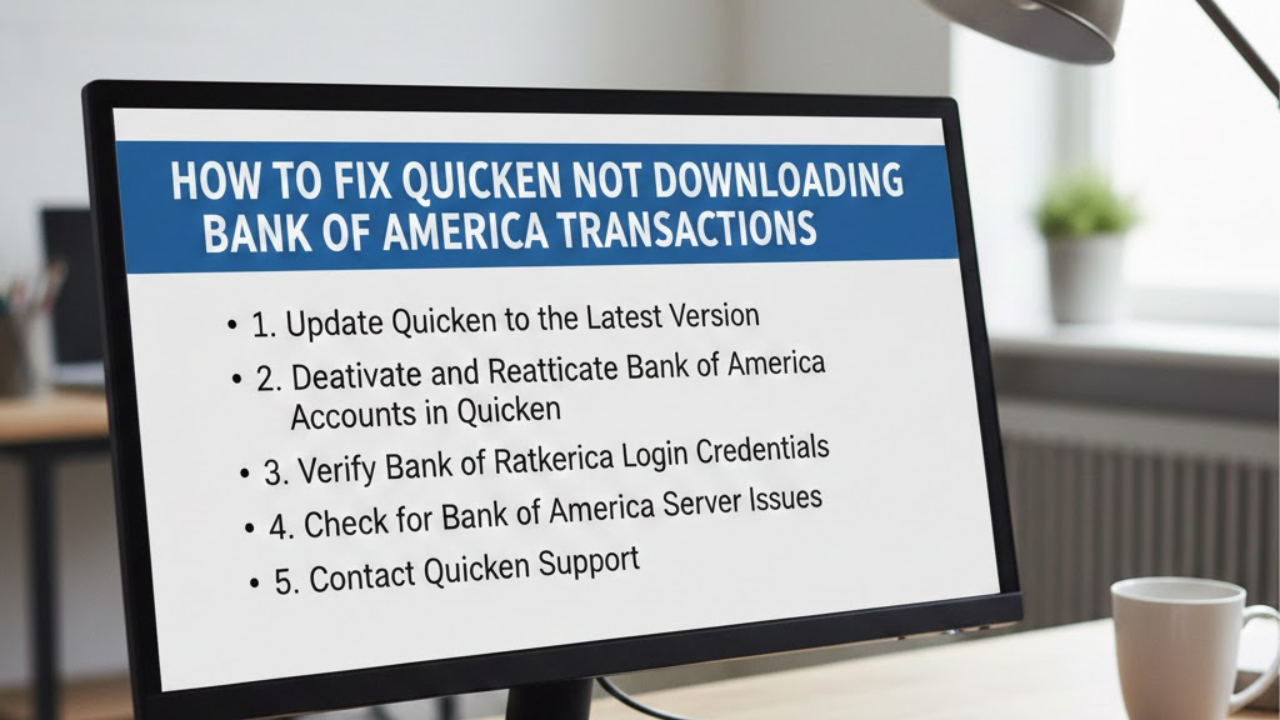
If you are trying to download your Bank of America transactions in Quicken and nothing appears, you are not alone. Many users experience issues with missing transactions, connection errors, or outdated account information in Quicken. The good news is that most of these problems can be fixed with simple troubleshooting steps.
In this guide, you’ll learn all the common causes and effective solutions to get your Bank of America transactions downloading again smoothly.
Common Reasons Why Quicken Won’t Download Bank of America Transactions
Before jumping into the fixes, it helps to understand what might be causing the issue:
- Bank of America server outage or maintenance
- Incorrect login credentials stored in Quicken
- Outdated Quicken version
- Changes in Bank of America security settings
- Connectivity issues with Express Web Connect or Direct Connect
- Old account settings or expired authorization
- Quicken data file errors
Once you know the possible reasons, you can apply the right solution.
Check Bank of America and Quicken Server Status
Sometimes, the issue isn’t on your side. Both Bank of America and Quicken experience temporary server outages.
What to do:
- Visit the official Bank of America online banking site and try logging in.
- Check the Quicken Service Status page on their website.
If servers are down, wait a while and try again.
Update Quicken to the Latest Release
Using an outdated version can cause syncing and downloading issues.
Steps:
- Open Quicken.
- Go to Help > Check for Updates.
- Install any available updates.
Once updated, try downloading transactions again.
Refresh Your Bank Account Connection
Sometimes the connection token between Bank of America and Quicken expires.
How to refresh:
- Go to Tools > One Step Update Summary.
- Click Reset Account or Fix It if prompted.
- Reauthenticate using your Bank of America login credentials.
Validate and Repair Your Quicken Data File
Corrupt or damaged data files can stop transactions from loading.
Steps:
- Go to File > Validate & Repair File.
- Check Validate File.
- Click OK and wait for the process to complete.
If Quicken finds errors, follow the on-screen steps to fix them.
Deactivate and Reactivate Your Bank of America Account in Quicken
This is one of the most effective fixes.
To deactivate:
- Go to Tools > Account List.
- Select the Bank of America account.
- Click Edit > Online Services tab.
- Select Deactivate.
To reactivate:
- Go back to the account.
- Click Set Up Now.
- Enter your Bank of America login information.
- Reconnect the account.
Make sure to link it to the correct existing account in Quicken.
Verify Your Bank of America Security Settings
Sometimes Bank of America updates its security protocols and requires reauthorization.
Check for:
- New security prompts
- Text/Email verification
- Updated Terms & Conditions
Log in to your Bank of America online account and complete any required prompts.
Final Thoughts
Issues with Quicken not downloading Bank of America transactions are common, but they don’t have to be frustrating. By updating Quicken, refreshing your bank connection, repairing your data file, or reauthorizing your account, you can usually fix the problem quickly.
If the error continues, it may be due to a temporary outage or a bank-level security update—so checking both sides can save valuable time. in this guide, you know how to fix Quicken not downloading Bank of America transactions