 All Quick Solutions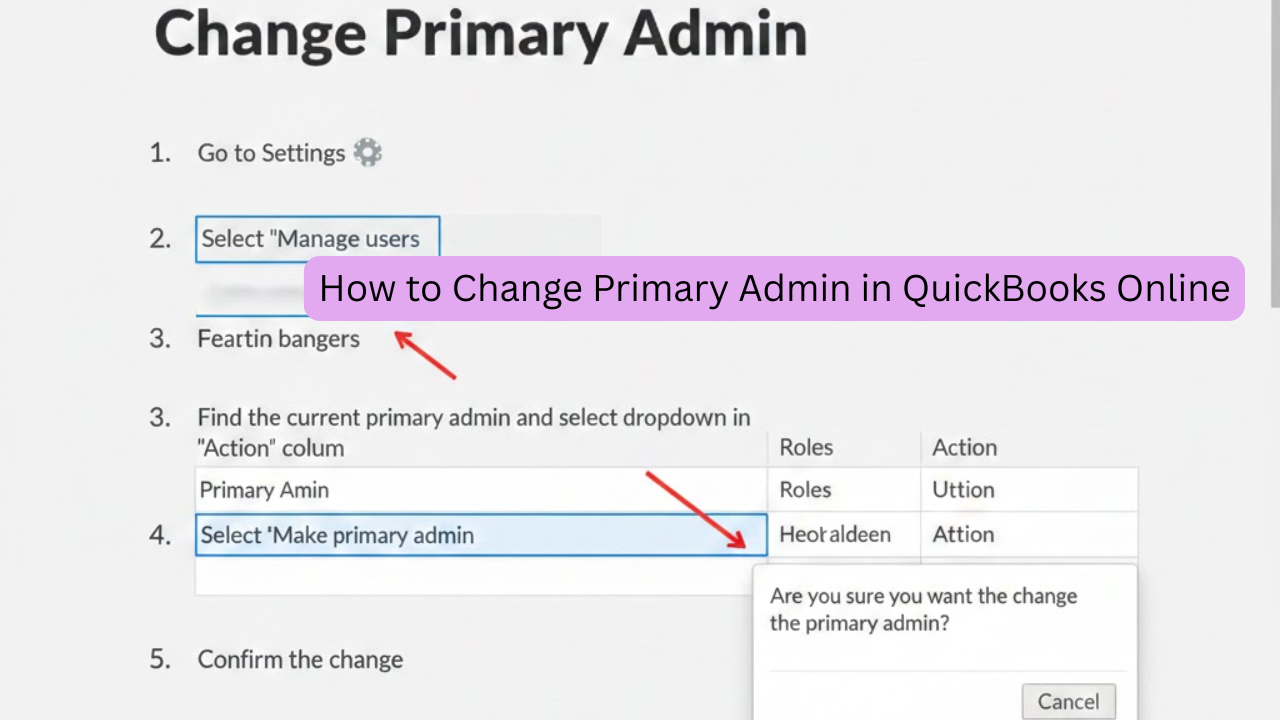
Managing user roles correctly is critical for business security and smooth accounting operations. If your business ownership or accounting responsibilities have changed, you may need to change the primary admin in QuickBooks Online.
What Is a Primary Admin in QuickBooks Online?
The Primary Admin in QuickBooks Online is the main account owner with the highest level of access. Only the primary admin can:
- Add or remove users
- Change company settings
- Manage subscriptions and billing
- Transfer Primary Admin rights
Who Can Change the Primary Admin in QuickBooks Online?
- You are the current primary admin.
- The current primary admin transfers access to you.
- The Primary Admin is unavailable (requires QuickBooks Support verification).
How to Change Primary Admin in QuickBooks Online (Step-by-Step)
Step 1: Sign in as the Current Primary Admin
Log in to QuickBooks Online using the credentials of the existing primary admin.
Step 2: Go to Manage Users
- Click the ⚙️ Settings icon.
- Select Manage users
Step 3: Select the New User
Choose the user you want to make the new primary admin.
⚠️ The user must already have admin access.
Step 4: Transfer Primary Admin Role
- Click Edit next to the user’s name.
- Select Make Primary Admin
- Enter the admin password to confirm
Step 5: Confirm the Change
QuickBooks Online will send a confirmation email. Once accepted, the role transfer is complete.
How to Change Primary Admin in QuickBooks Online If the Admin Is Unavailable
If the primary admin has left the company or is unreachable:
- Contact QuickBooks Online Support
- Submit ownership verification documents
- Wait for approval (can take several business days)
Common Issues When Changing Primary Admin in QuickBooks Online
- User is not an admin
- Incorrect login credentials
- Pending invitation not accepted
- Subscription billing conflicts
Best Practices Before You Change Primary Admin in QuickBooks Online
- Back up important financial data
- Review user permissions
- Inform your accountant or finance team
- Confirm billing details after the transfer
Final Thoughts
QuickBooks Online is essential for maintaining security, compliance, and business continuity. Whether you’re transferring ownership or reorganizing roles, following the correct steps ensures a hassle-free experience.
If you need expert help managing QuickBooks Online user roles, don’t hesitate to contact a certified QuickBooks professional.