 All Quick Solutions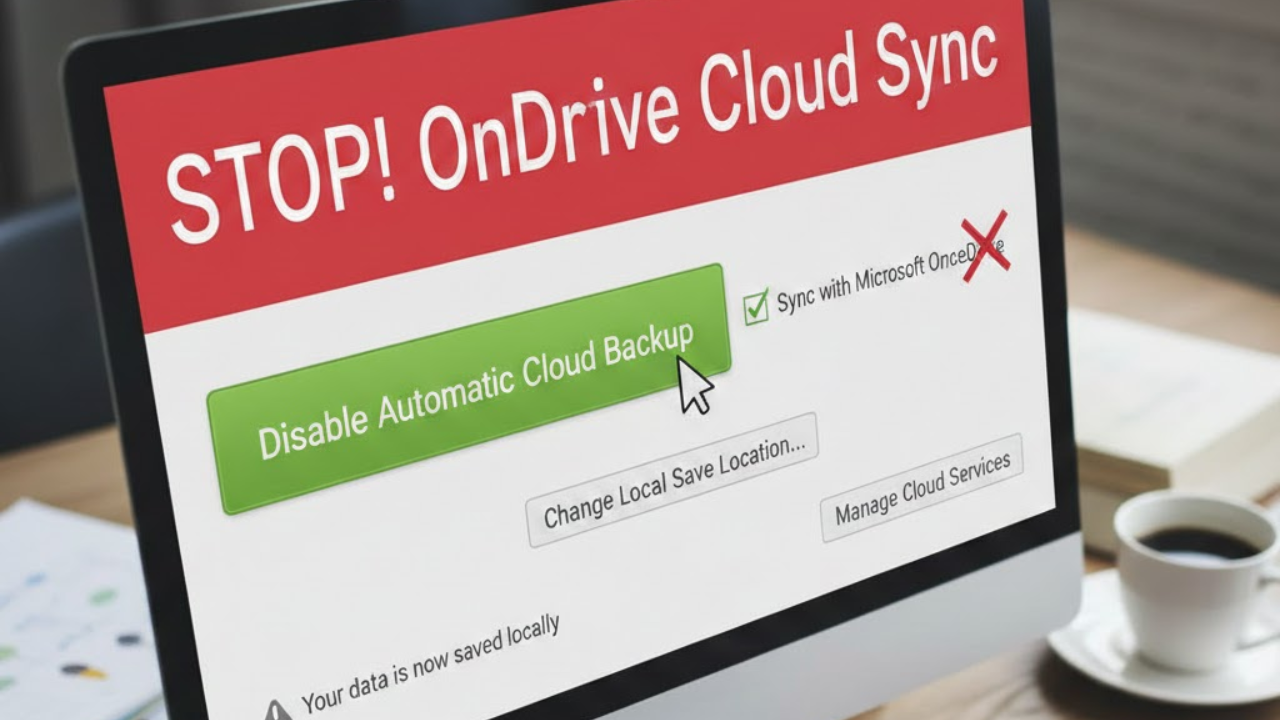
Fix Quicken OneDrive sync issues on Windows by moving your Quicken data file out of OneDrive and stopping automatic folder backup. Many Windows users experience errors, slow performance, or file lock messages because Quicken saves everything to OneDrive by default. This guide explains exactly how to fix Quicken OneDrive sync issues safely and keep your financial data stored locally where Quicken works best.
Why Quicken Saves to OneDrive in the First Place
This usually isn’t Quicken’s fault. It happens because:
- OneDrive is set as your default Documents folder
- Windows automatically redirects folders (Documents, Desktop) to OneDrive
- Quicken saves files to the Documents folder by default
So Quicken thinks it’s saving locally—but Windows quietly sends it to OneDrive.
Why This Is a Problem
Quicken does not recommend storing active data files in cloud-sync folders like OneDrive because:
- Files can become corrupted
- You may see “file already in use” errors
- Sync conflicts can overwrite data
- Performance may be slower
Quicken works best with a local-only file.
Step 1: Create a Local Folder for Quicken
First, create a folder that OneDrive does not control.
- Open File Explorer
- Go to This PC → Local Disk (C:)
- Create a new folder, for example:C:\QuickenData
This folder will stay on your computer only.
Step 2: Move Your Quicken File Out of OneDrive
- Open Quicken
- Go to File → Show this file on my computer
- Close Quicken completely
- Move the .QDF file from the OneDrive folder to C:\QuickenData
- Double-click the file in the new location to reopen Quicken
Quicken will now use the local file going forward.
Step 3: Stop OneDrive from Taking Over Your Documents Folder (Recommended)
To prevent this from happening again:
- Click the OneDrive cloud icon in the system tray
- Go to Settings
- Open the Sync and backup tab
- Click Manage backup
- Turn off backup for:
- Documents
- Desktop
- Pictures
- Confirm your changes
This stops Windows from redirecting important apps into OneDrive.
Step 4: (Optional) Tell Quicken to Use the New Location
In Quicken:
- Go to Edit → Preferences
- Select Backup
- Set your backup location to:C:\QuickenData\Backups
This keeps both your main file and backups local.
Should You Use OneDrive at All with Quicken?
Yes—but carefully.
Best practice:
- Keep your active Quicken file local
- Use OneDrive only for backups, not live files
This gives you protection without the risk of corruption.
Final Thoughts
If Quicken keeps saving to OneDrive, it’s usually a Windows setting—not something you did wrong. By moving your data file to a local folder and adjusting OneDrive’s backup settings, you can avoid sync problems and keep your financial data safe.
Your future self (and your finances) will thank you.