 All Quick Solutions
If Quicken freezes on startup, refuses to load your data file, or gets stuck on the splash screen, you’re not alone. Many Windows and Mac users experience this issue due to corrupted files, outdated software, or conflicting background programs.
The good news? Most startup freezes can be fixed at home with a few simple steps.
In this guide, we’ll cover:
- Common reasons Quicken freezes at startup
- Step-by-step methods to fix the issue
- Preventive tips to avoid future freezes
- When to contact Quicken support
Let’s get started!
Quicken Freezes on Startup? Here’s How to Fix It (Complete Troubleshooting Guide)
If Quicken freezes on startup, refuses to load your data file, or gets stuck on the splash screen, you’re not alone. Many Windows and Mac users experience this issue due to corrupted files, outdated software, or conflicting background programs.
The good news? Most startup freezes can be fixed at home with a few simple steps.
In this guide, we’ll cover:
- Common reasons Quicken freezes at startup
- Step-by-step methods to fix the issue
- Preventive tips to avoid future freezes
- When to contact Quicken support
Let’s get started!
How to Fix Quicken When It Freezes on Startup
Restart Your Computer
Before trying anything complicated, perform a simple reboot. This clears temporary caches and stops background conflicts.
Run Quicken as Administrator (Windows).
Right-click the Quicken icon → Run as Administrator.
This helps bypass permission-related startup freezes.
Update Quicken to the Latest Release
If Quicken opens partially or gets stuck:
Windows
- Press Ctrl + Shift while double-clicking the Quicken icon.
- Select Start Quicken without opening the data file
- Go to: Help → Check for Updates
Mac
- Go to Quicken → Check for Updates
Open Quicken Without Loading Your Data File
Sometimes the issue is in the data file—not the software.
Windows Steps
- Hold Ctrl + Shift
- Double-click Quicken
- Continue holding until a blank file opens
- If Quicken opens normally, your data file may be corrupted.
Mac Steps
- Hold Option
- Launch Quicken
- Choose Don’t open a file.
Then try opening a backup file instead of the normal one.
Validate and Repair Your Data File
If the data file loads but is unstable:
Windows
- Go to File → Validate & Repair File
- Check Validate File
- Run the repair
Mac
Use File → Repair File or restore a recent backup.
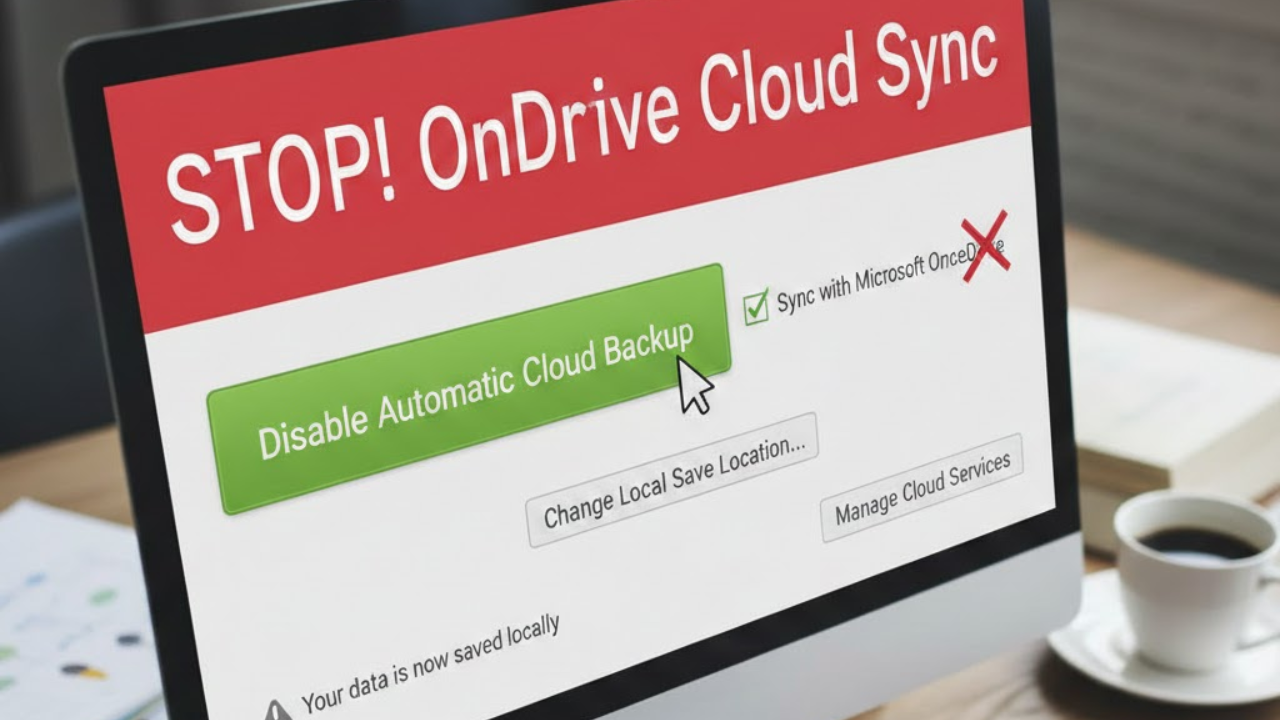
Disable Sync or Cloud Services
Cloud sync conflicts can freeze startup.
- Go to Edit → Preferences → Mobile & Web
- Turn OFF sync
- Restart Quicken
Temporarily Disable Antivirus or Firewall
Security software may block Quicken files.
Try disabling real-time protection briefly and launching Quicken.
If it works, add Quicken to the antivirus exceptions/whitelist.
Reinstall or Repair Quicken
If the installation is corrupted:
Windows
- Open Control Panel → Programs → Uninstall a Program
- Select Quicken → Repair (or uninstall and reinstall).
Mac
- Drag Quicken to Trash
- Download the latest version from your Quicken account.
Final Thoughts
A Quicken freeze at startup can be frustrating, but in most cases, the issue is fixable within minutes. Whether it’s a corrupted data file or a simple update problem, the solutions above should help you get back to managing your finances smoothly.