 All Quick Solutions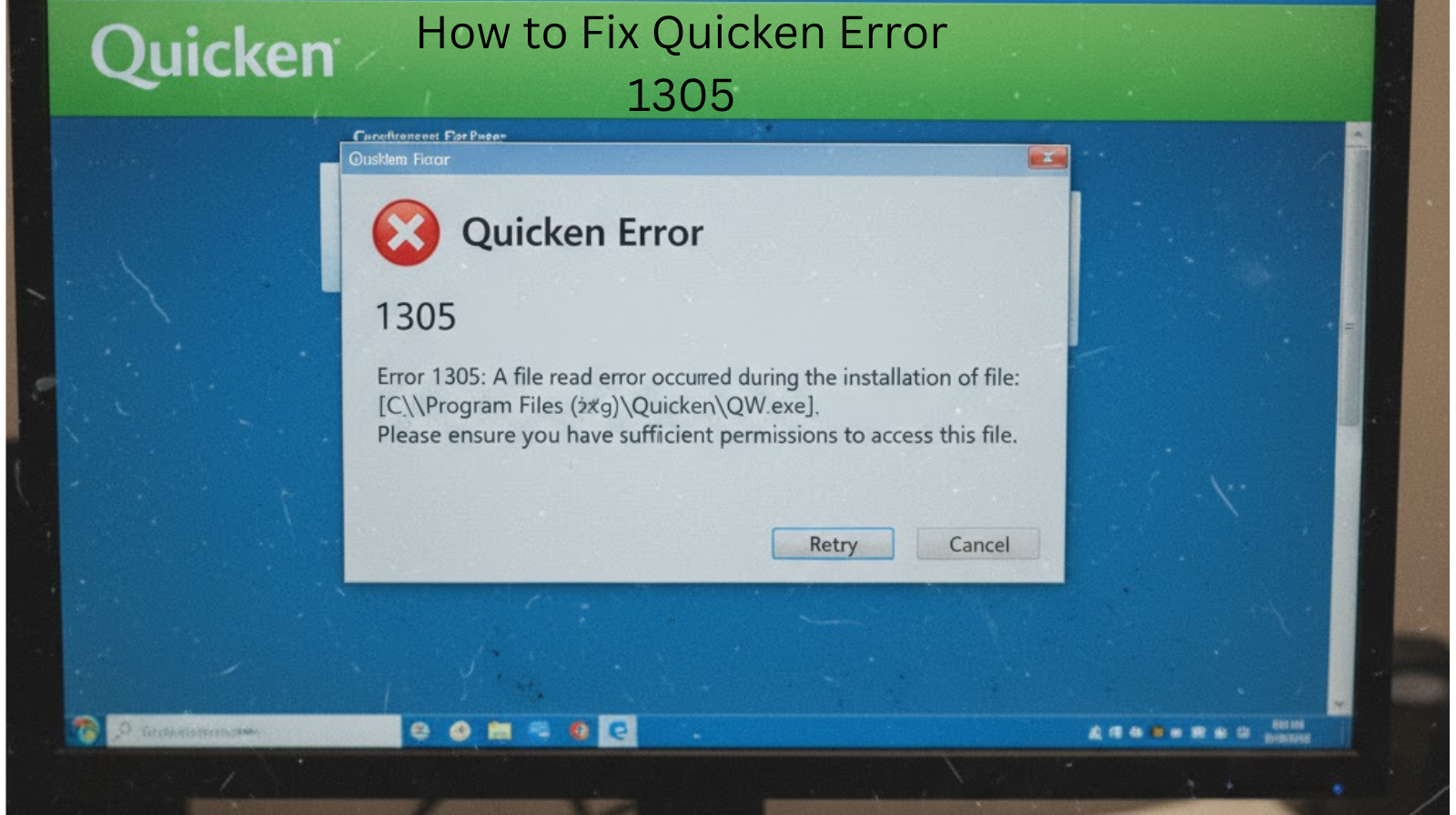
If you’re installing or updating Quicken and suddenly run into Error 1305: Error Reading from File, you’re not alone. This is a common installation issue that typically occurs when the installer can’t read a required file. The good news? It’s usually easy to fix with a few troubleshooting steps.
In this guide, we’ll walk you through what Error 1305 means, what causes it, and how to fix it quickly so you can get Quicken running smoothly again.
What Is Quicken Error 1305?
Quicken Error 1305 appears when the installer fails to read a particular file from the installation source. This can happen while installing Quicken for the first time or when updating to a newer version.
You may see a message like
Error 1305: Error reading from file filenamefilenamefilename. Verify that the file exists and that you can access it.
Common Causes of Quicken Error 1305
- Corrupt Quicken installation files
- Damaged or incomplete download
- Incorrect file permissions
- Interference from antivirus or firewall
- Issues with the Windows Installer service
- Damaged CD/DVD (for disc installations)
How to Fix Quicken Error 1305
Follow these solutions in order until the issue is resolved.
Re-download the Quicken Installer.
If you downloaded Quicken from the internet, the most likely cause is a corrupted or incomplete download.
Steps:
- Delete the existing Quicken setup file.
- Go to your Quicken account and download the installer again.
- Run the installer as administrator.
Run the installer as administrator.
Windows may prevent the installer from accessing required files.
Steps:
- Right-click the Quicken setup.exe file.
- Select Run as administrator.
Temporarily Disable Antivirus or Firewall
Security software can mistakenly block installation files.
Steps:
- Turn off your antivirus program and firewall temporarily.
- Run the Quicken installation again.
- Re-enable your security software after installation.
Tip: Do not stay offline without antivirus for long.
Check File Permissions
If the installer can’t access certain folders, Error 1305 may appear.
Steps:
- Navigate to the folder mentioned in the error message.
- Right-click the folder → Properties → Security.
- Ensure your user account has full control.
- Apply changes and retry installation.
Clean Up Temporary Files
Corrupted temp files can block installations.
Steps:
- Press Windows + R, type %temp%, and hit Enter.
- Select all files and delete them.
- Restart your PC.
- Try installing Quicken again.
Repair Windows Installer Service
A faulty Windows Installer service can cause read/write errors.
Steps:
- Press Windows + R, type services.msc, and press Enter.
- Locate Windows Installer.
- Right-click → Restart (or Start if it’s stopped).
- Retry the installation.
Install Using a Different User Account
Sometimes user profiles are damaged or restricted.
Steps:
- Create a new admin user account.
- Log into the new account.
- Run the Quicken installer.
When to Contact Quicken Support
You should reach out to Quicken Support if:
- Error 1305 continues after trying all the steps
- Your Windows installation has deeper file-access problems.
- You suspect a corrupted Quicken account download.
Support can provide direct guidance and alternative installation options.
Final Thoughts
Quicken Error 1305 is frustrating, but it’s almost always related to file access or corrupted installation data—and that means it’s fixable. By re-downloading the installer, checking permissions, and ensuring your security software isn’t interfering, you can usually resolve the issue in just a few minutes.